
Create a custom Zapier automation to import new clients
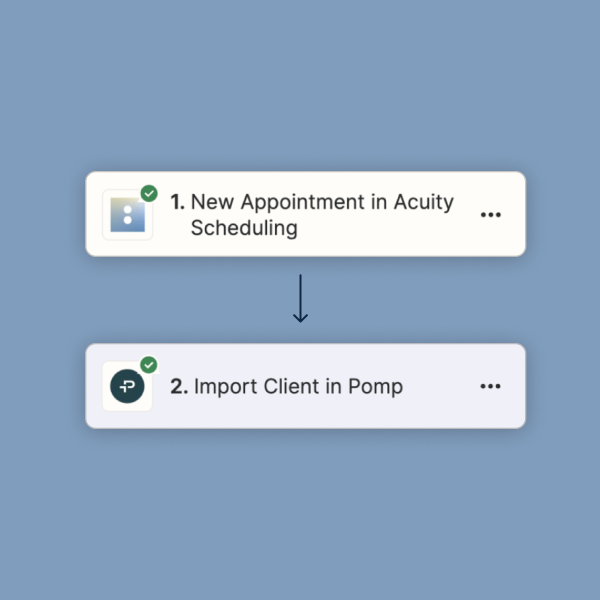
Zapier allows you to connect Pomp to hundreds of apps to create automatic workflows!
If you use Acuity, Boulevard, Calendly or any of the hundreds of other scheduling apps listed here, you can now create an automation to import new clients to Pomp as they book appointments. Read on for our step-by-step guide on creating your own automation from scratch.
Create a Zapier automation from scratch
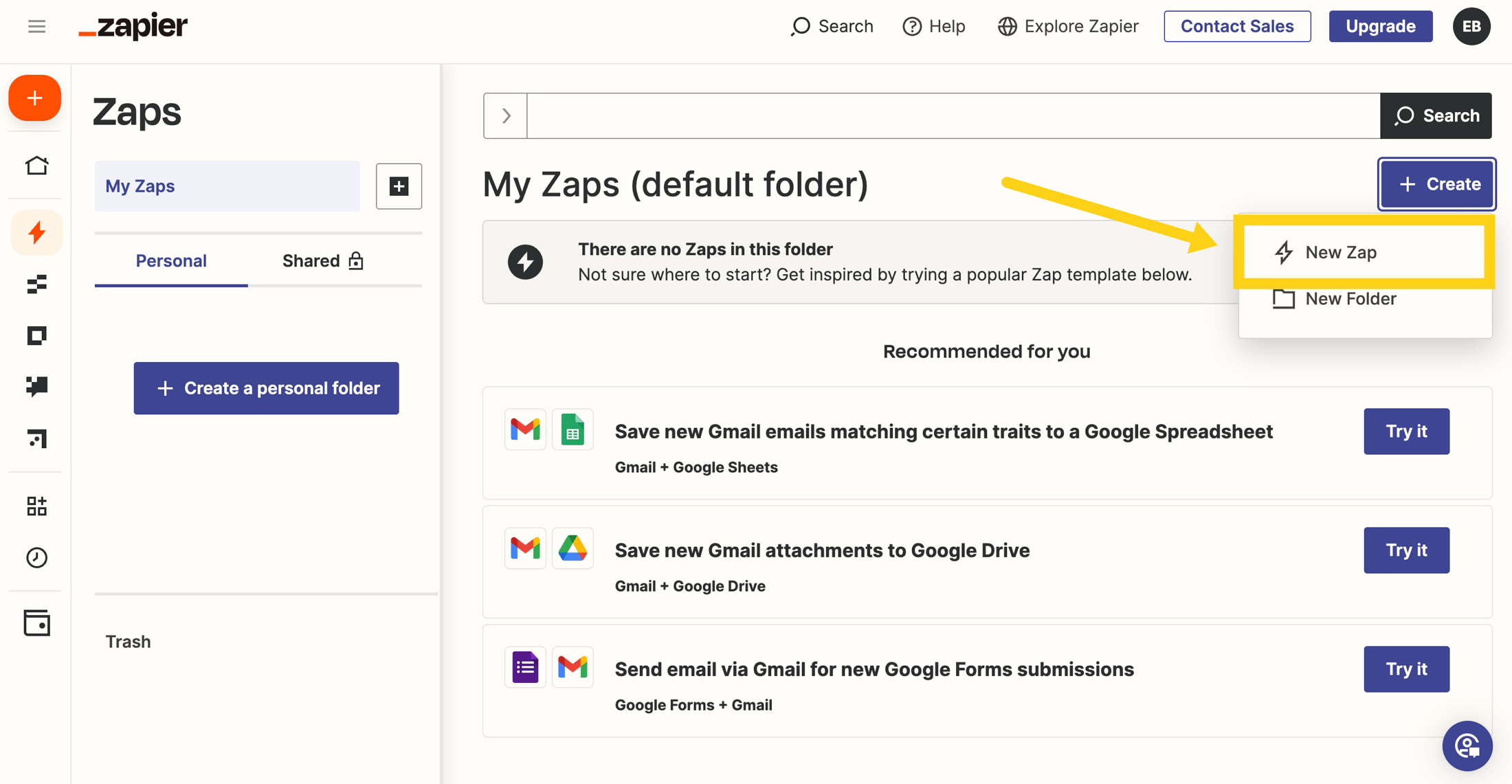
From your free Zapier account, click on “Create New Zap”
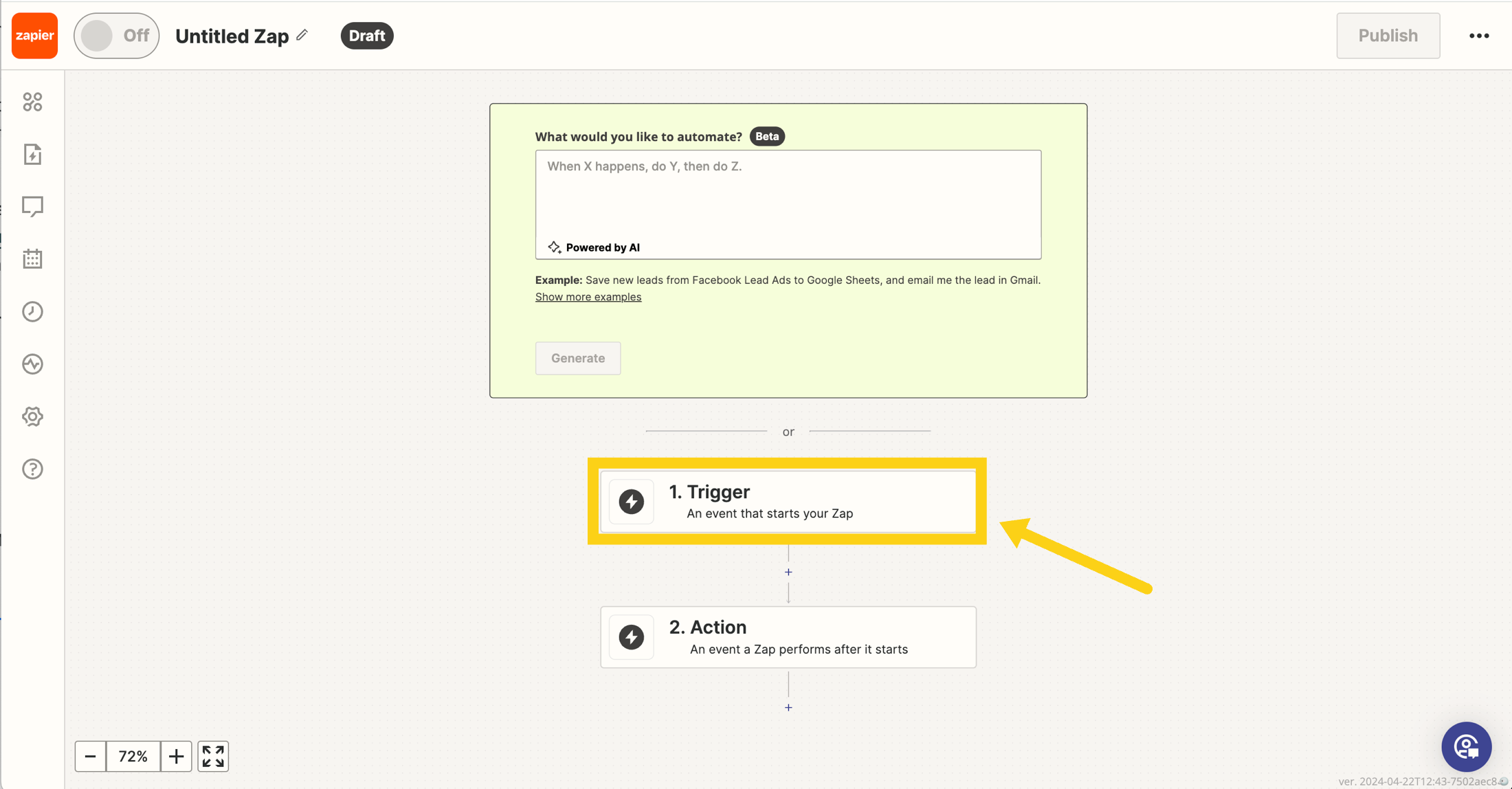
Click on “Trigger”
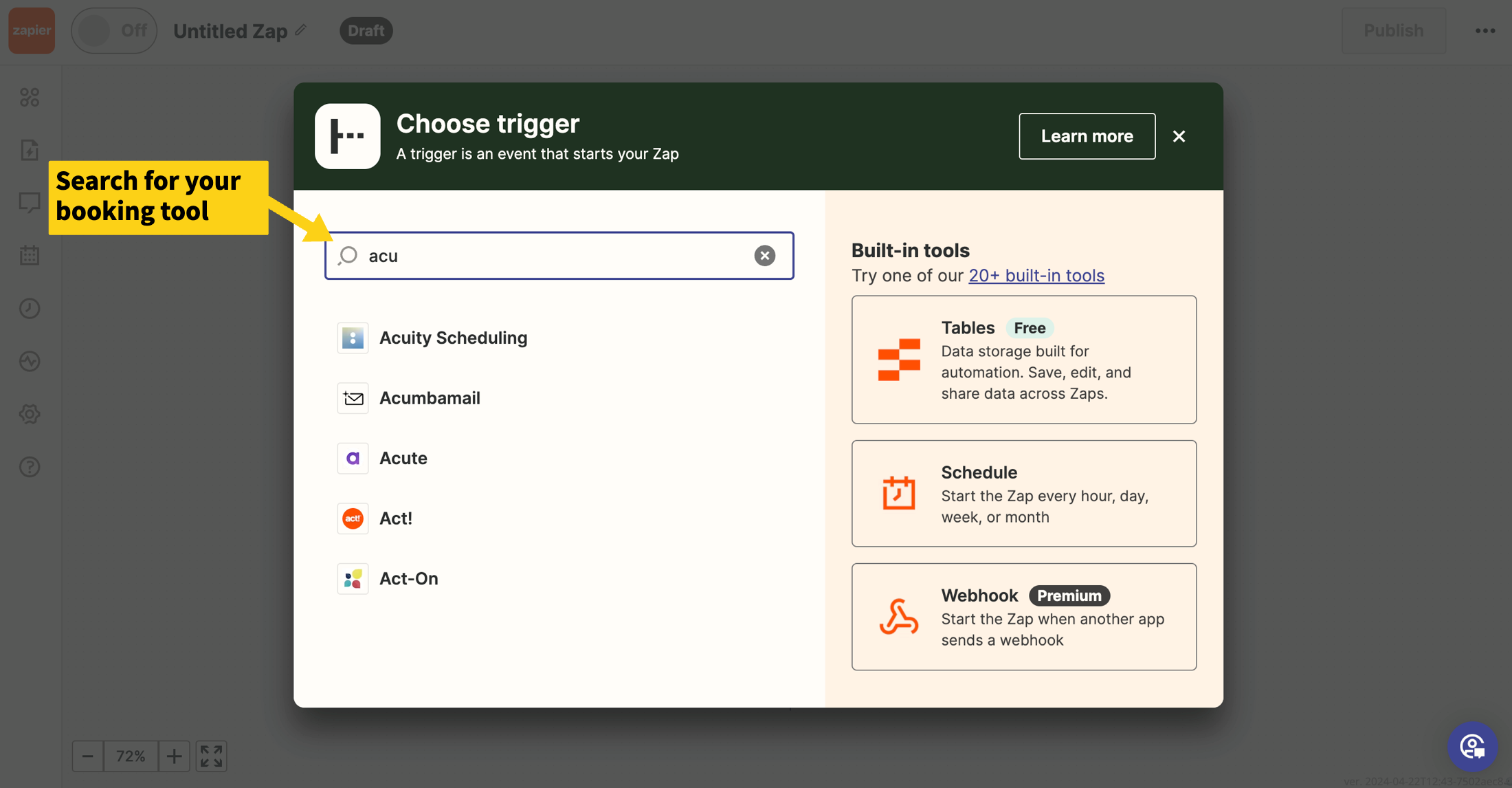
Search for your booking tool and select it as your trigger.

Select an event to act as your Trigger. This should be something like “New Appointment,” “New Guest Created,” or any other event that you’d like to trigger that client getting imported into Pomp.
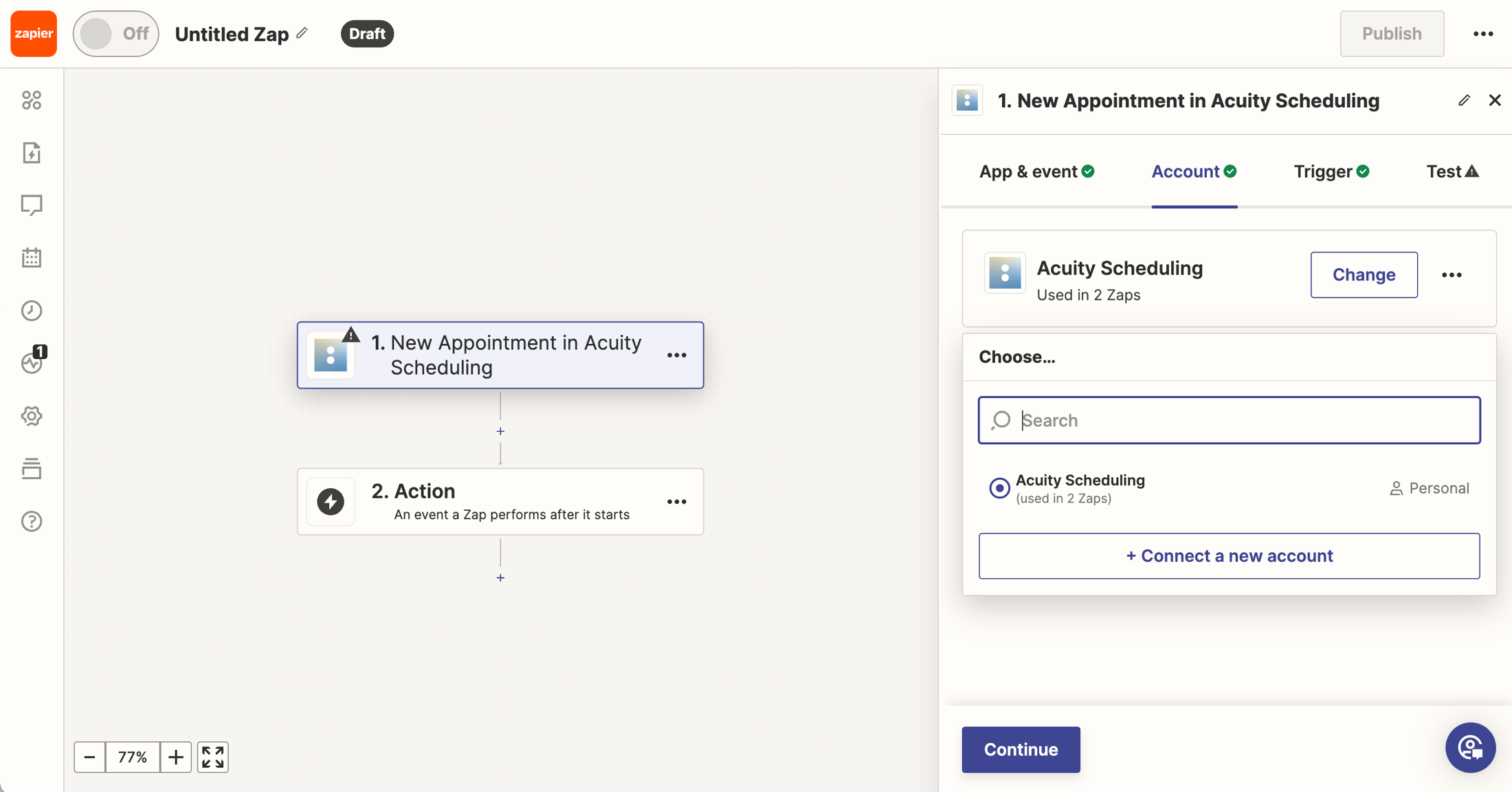
Connect to your booking tool via Zapier — this will look different for each app, so simply follow Zapier’s instructions!
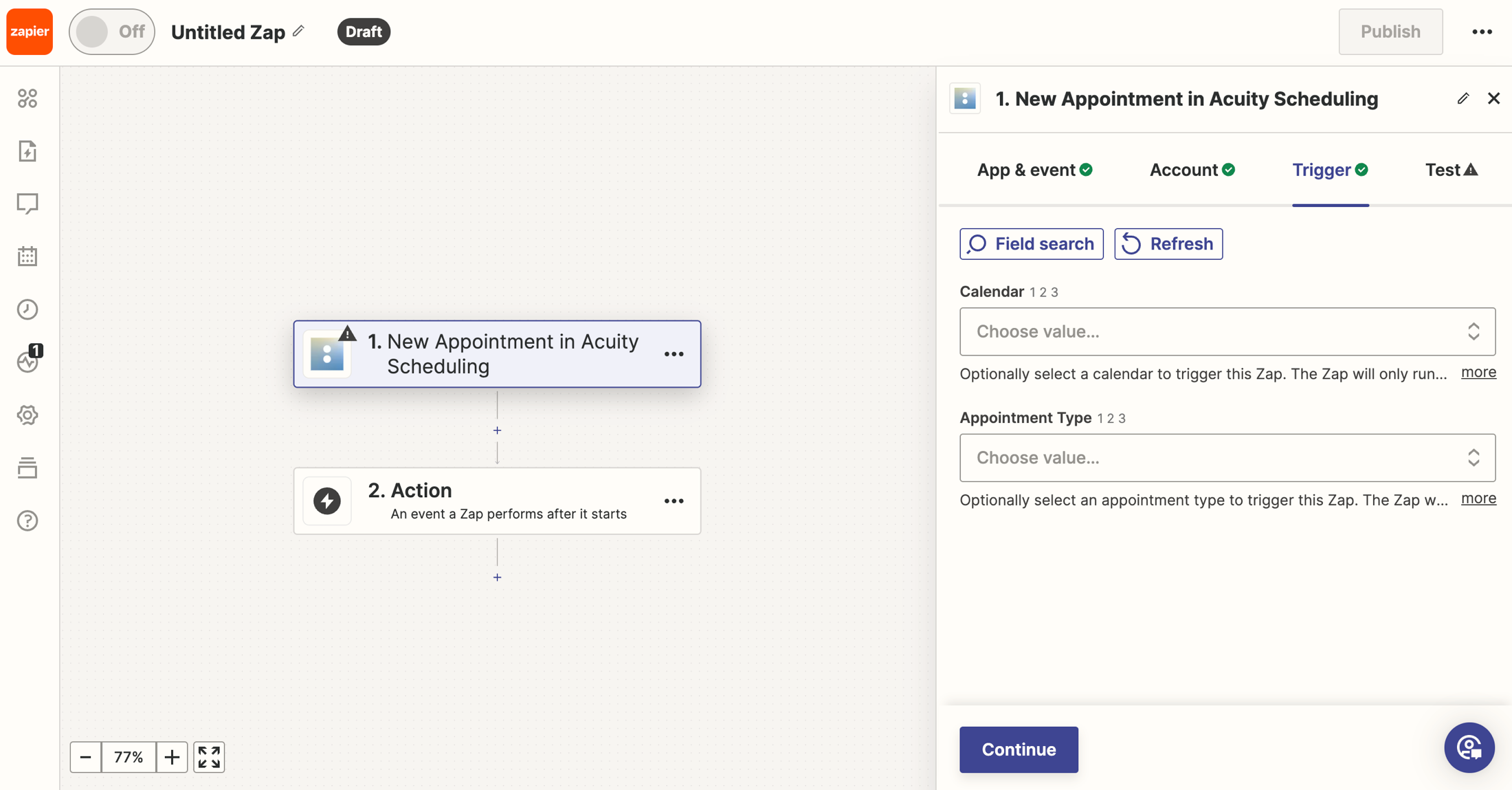
Configure your Trigger — some apps will have the option to select specific Calendars or Appointment Types to trigger a client import to Pomp, allowing you to control exactly which clients are imported.
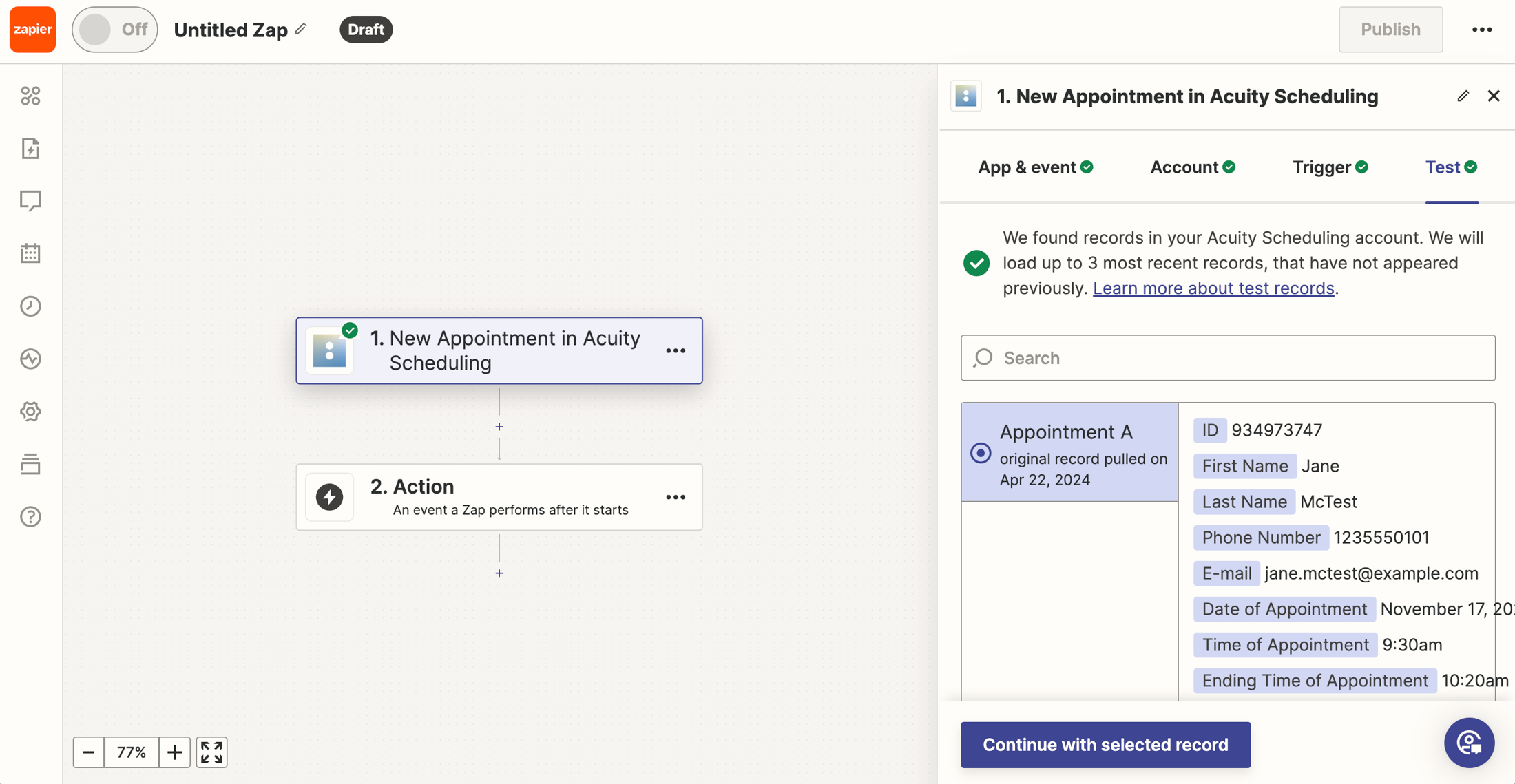
Test your Trigger to ensure it generates the correct fields and click “Continue with selected record”
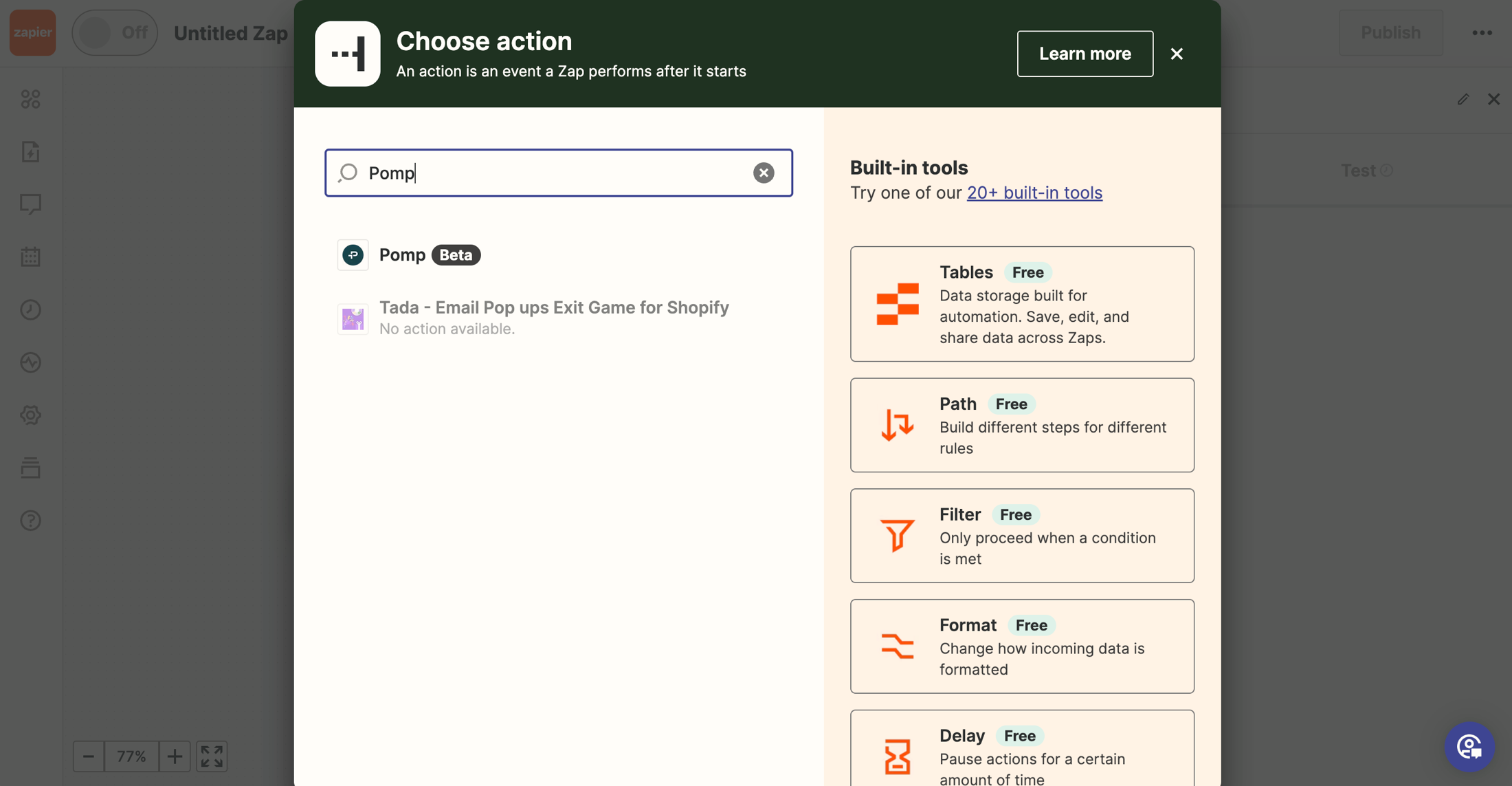
Time to set up your Action! Search for “Pomp” and select it as your action.
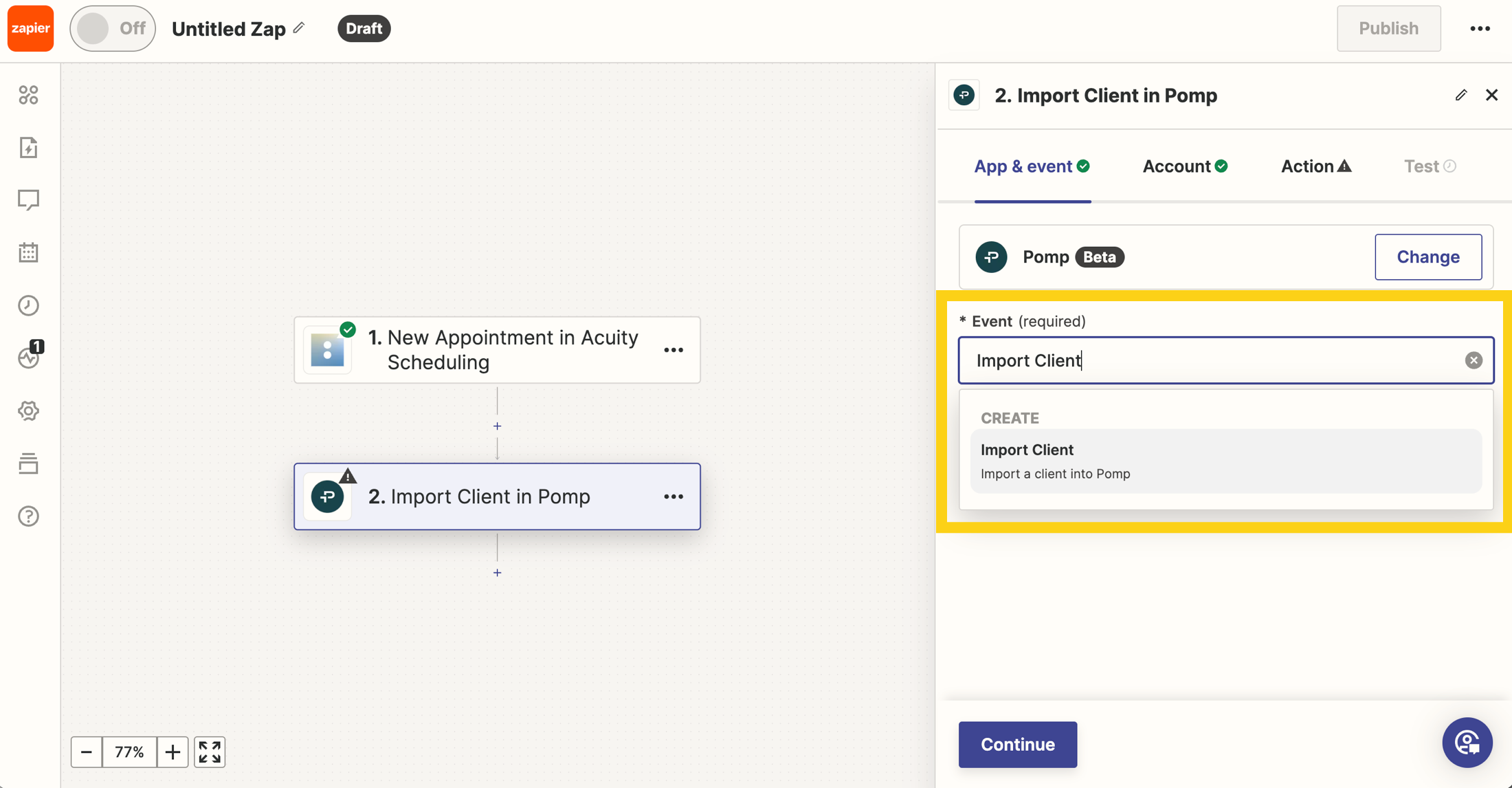
Select “Import Client” as your Event.
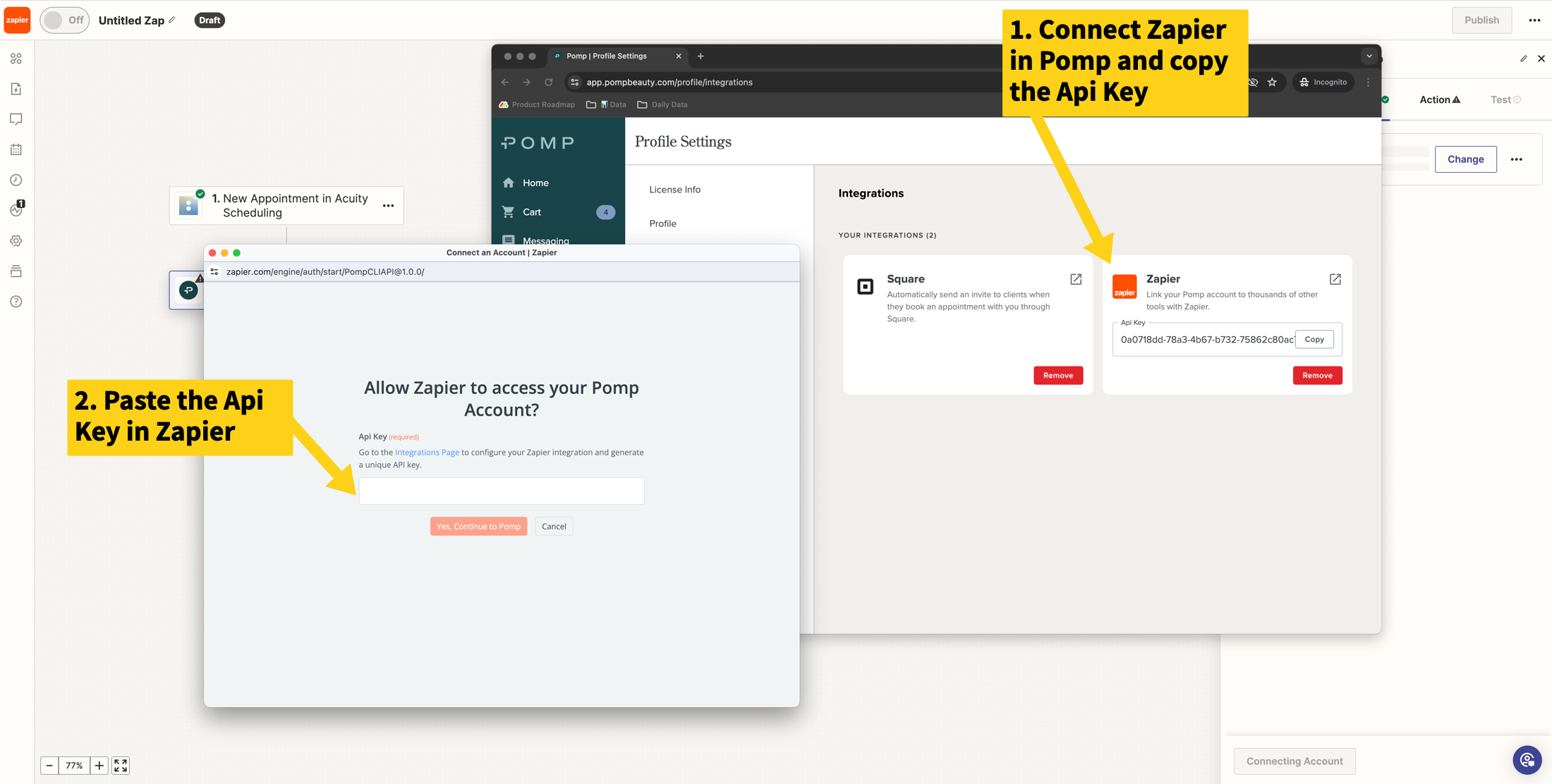
On the next tab, “Account,” connect your Pomp account to Zapier by following Zapier’s instructions to copy your Api Key from Pomp into Zapier'.
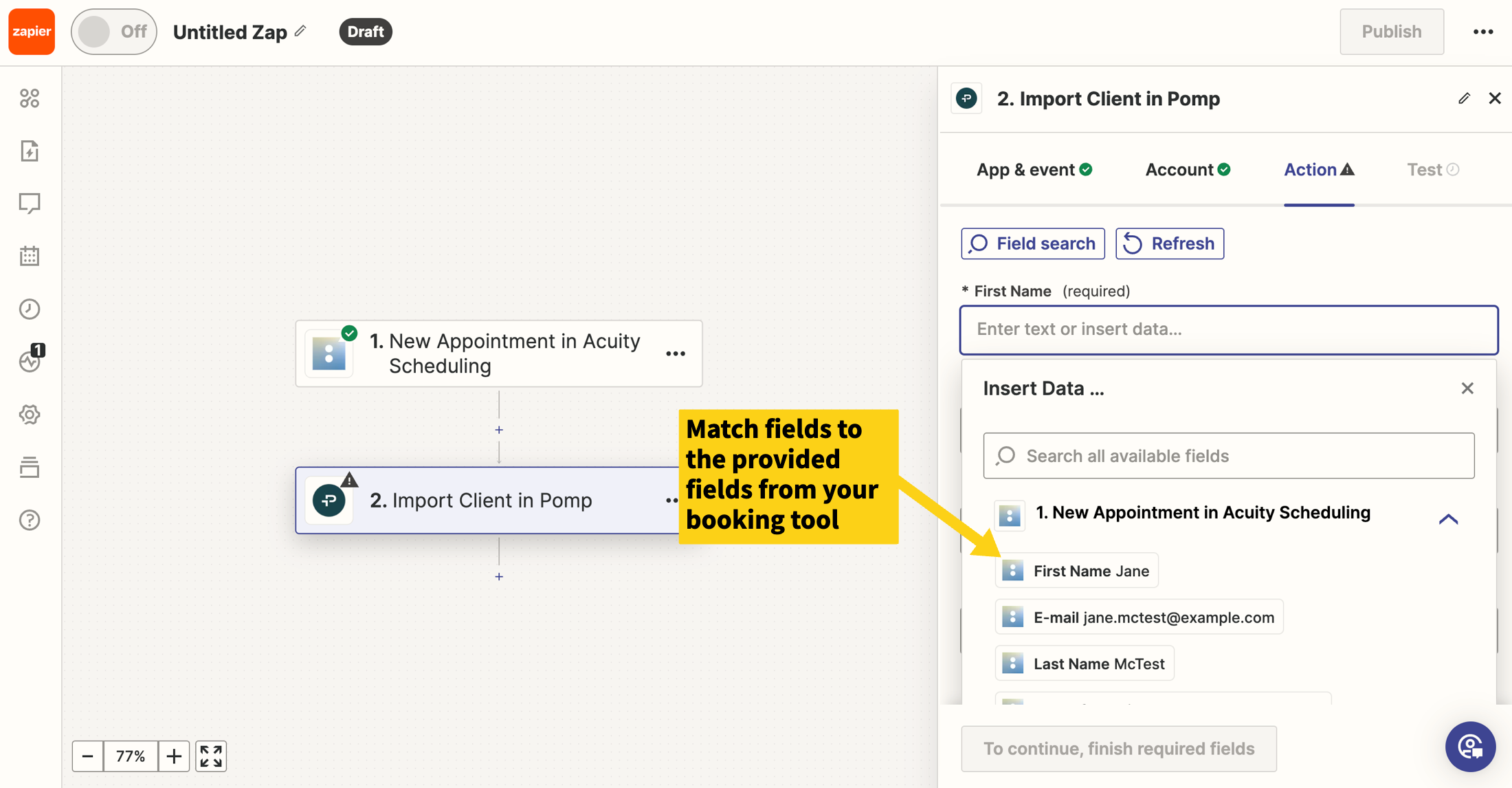
Configure your Action by matching the fields to the provided fields from your booking tool.
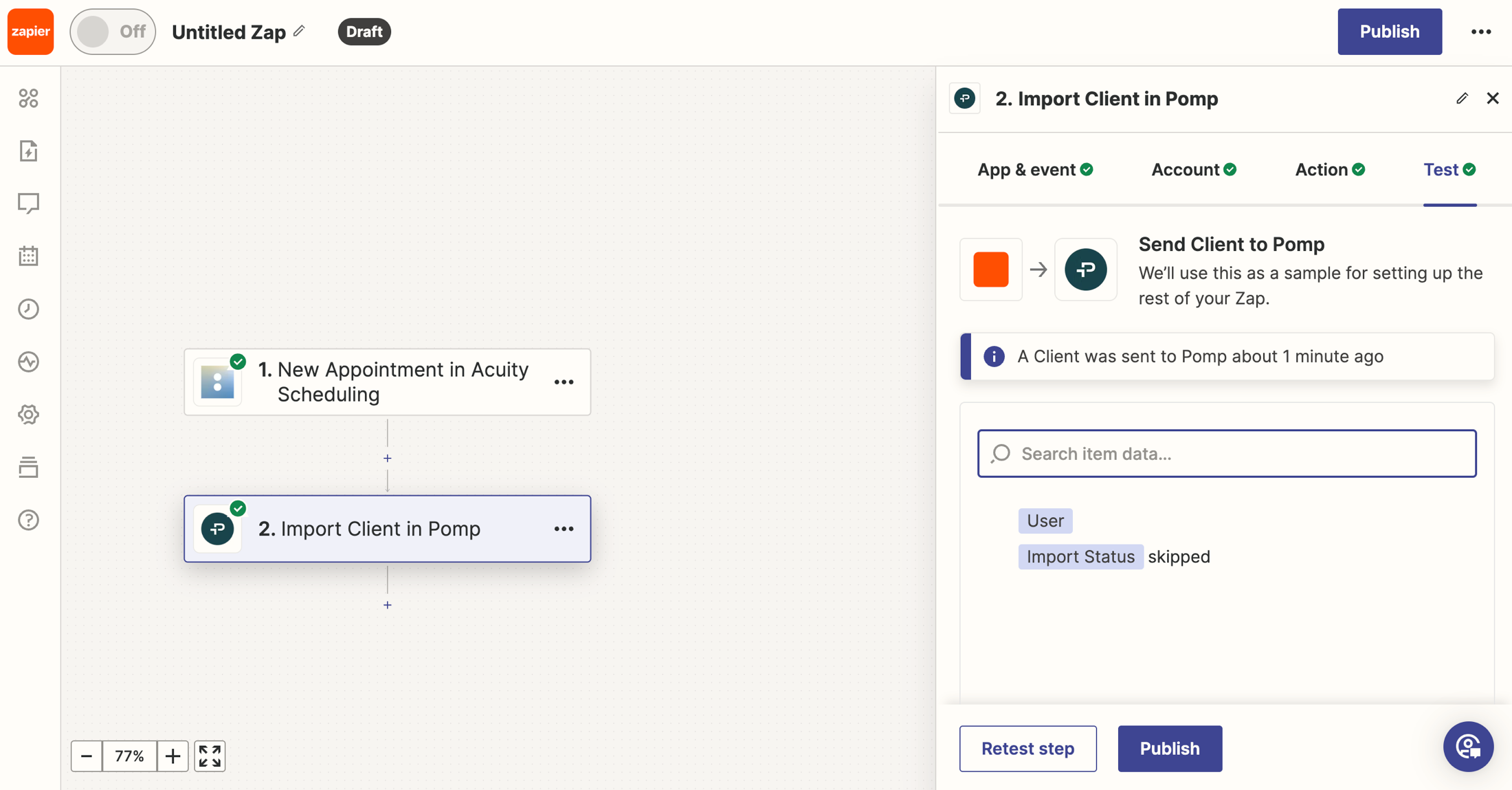
You can now test your connection! If the test is successful, you will see the test client imported into your Pomp account. If the client’s email is already in Pomp, the Import Status will read “Skipped”
Next, you can hit Publish and you are all done!
need some help? schedule time with our team to get set up!